- Documentation
- FlowFuse User Manuals
- FlowFuse API
- FlowFuse Self-Hosted
- Quick Start
- Upgrading FlowFuse
- Support
- Premium Support
- Debugging Node-RED issues
- Other
- admin
- cloud
- contribute
- device-agent
- hardware
- install
- migration
- user
- Getting Started
- Static asset service
- Bill of Materials
- FlowFuse Concepts
- Instance States
- Changing the Stack
- Custom Hostnames
- Custom Node Packages
- Dashboards
- DevOps Pipelines
- Environment Variables
- FlowFuse Expert
- FlowFuse File Nodes
- FlowFuse MQTT Nodes
- FlowFuse Persistent Context
- FlowFuse Project Nodes
- FlowFuse Tables
- Groups
- High Availability mode
- HTTP Access Tokens
- Instance Settings
- Logging
- Role-Based Access Control
- Shared Team Library
- Snapshots
- Team Broker
- Teams
- User Settings
First-run Setup
Following a successful install, you will be able to access the platform to go through the initial setup.
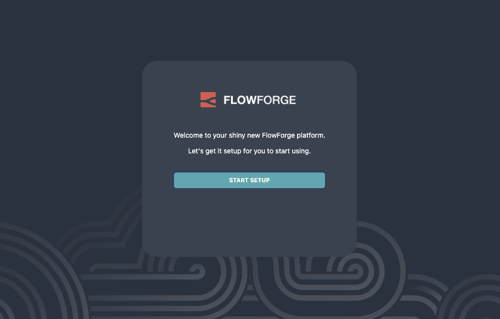
1. Start setup
- LocalFS
Open FlowFuse in your browser http://localhost:3000
- Docker or Kubernetes
Open FlowFuse in your browser http://forge.example.com (Change .example.com to match the domain you set up in DNS)
Click the START SETUP button
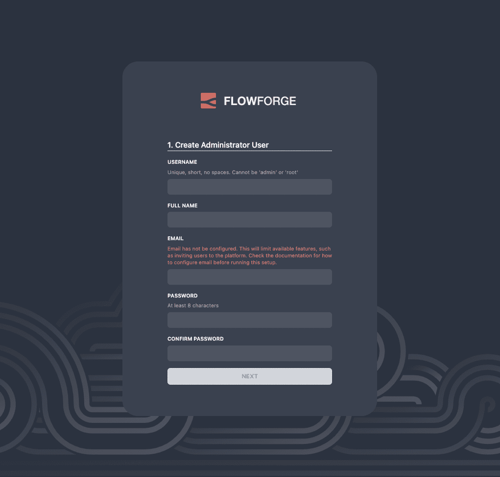
2. Create an Administrator
The first user you create will be an Administrator. They will have full access to the platform, be able to set platform-wide configuration and manage users and teams.
Note: with the 0.3 release, it is possible to reset your password if you have email
configured and enabled the user:reset-password option in Admin settings. Otherwise,
make sure you make a note of the password you set. We will provide tools to manage passwords
outside of the platform in a future release.
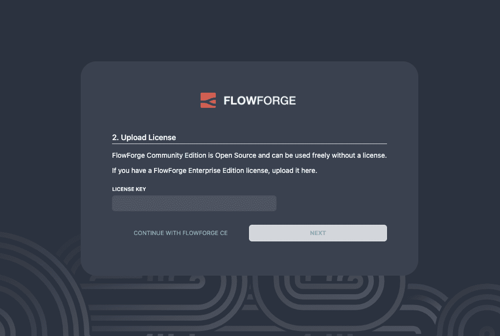
3. Upload a license
FlowFuse Community Edition is Open Source and can be used freely without a license.
If you have a FlowFuse Enterprise Edition license you can upload it here.
4. Finish setup
Once you complete the setup, you will be able to log in as the Administrator user you created and start using the platform. You can setup your Team and create your first Node-RED instance.
More information about using the FlowFuse platform is available in the main user guide.